

- Introduction
- Understanding Caller ID Name (CNAM)
- How Caller ID Works
- Step-by-Step Guide to Changing Caller ID Name on iPhone
- Step-by-Step Guide to Changing Caller ID Name on Android
- Alternative Solutions for Caller ID Privacy
- Important Considerations When Changing Caller IDs
- Troubleshooting Common Caller ID Issues
- FAQs (Frequently Asked Questions)
Introduction
(Updated December 2025)
Caller ID is a crucial feature in telephonic communication. It displays the name and number of the person calling, helping recipients decide whether to answer the call. Managing your caller ID name is essential for creating positive first impressions and enhancing call pick-up rates.
In 2025, with robocalls and spam calls reaching an all-time high, having a properly configured caller ID has become more important than ever. Studies show that calls displaying a recognizable name are answered up to 65% more often than those showing just a number or “Unknown Caller.”
By customizing your caller ID name, you can:
- Make your calls easily identifiable
- Improve response rates from people you’re contacting
- Establish a professional appearance if you’re calling for business purposes
- Reduce the chances of being mistaken for spam or robocalls
- Build trust with new contacts before they even answer
Understanding how to change your caller ID name on both iPhone and Android devices can significantly improve your communication experience. This guide will provide step-by-step instructions for updating your caller ID name on these platforms, along with alternative solutions and troubleshooting tips for common issues.
Understanding Caller ID Name (CNAM)

Caller ID Name (CNAM) is an important part of caller identification. It shows the caller’s name on the recipient’s phone screen, giving them an instant idea of who is calling. This can greatly increase the chances of the call being answered and create a friendly start to the conversation.
CNAM is typically limited to 15 characters in the United States, which is why you often see abbreviated names on your caller ID display. The name displayed comes from a database lookup, not from your phone’s settings directly.
How Caller ID Works
The CNAM system works in a few steps:
- Initiation: When you make a call, your phone number and associated CNAM information are sent.
- Transmission: The signal containing your number and name travels through network carriers.
- Database Query: The recipient’s carrier queries a CNAM database using your phone number.
- Display: The recipient’s carrier receives this information and displays it on their phone screen.
Role of Network Carriers
Network carriers act as intermediaries in this process:
- They ensure that the correct CNAM data is transmitted along with your phone number.
- Some carriers allow users to update their CNAM directly, while others require customer service intervention.
- Carriers maintain their own CNAM databases, which can sometimes cause discrepancies in how your name appears to different recipients.
CNAM Database Lookup Process
It’s important to understand that CNAM works differently than you might expect:
- Database-Driven: Your caller ID name is stored in centralized databases, not on your phone. When someone calls you, their carrier looks up the number in these databases.
- Propagation Time: After changing your CNAM, it can take 24-72 hours for the change to propagate across all carrier databases nationwide.
- Carrier Variations: Different carriers use different CNAM providers, which means your name might display slightly differently depending on who you’re calling.
- STIR/SHAKEN Protocol: In 2025, most US carriers have fully implemented STIR/SHAKEN authentication to combat caller ID spoofing. This means your legitimate caller ID changes are verified and trusted by receiving carriers.
Understanding these underlying mechanics helps you manage your caller ID settings more effectively and set realistic expectations for when changes will take effect.
Step-by-Step Guide to Changing Caller ID Name on iPhone
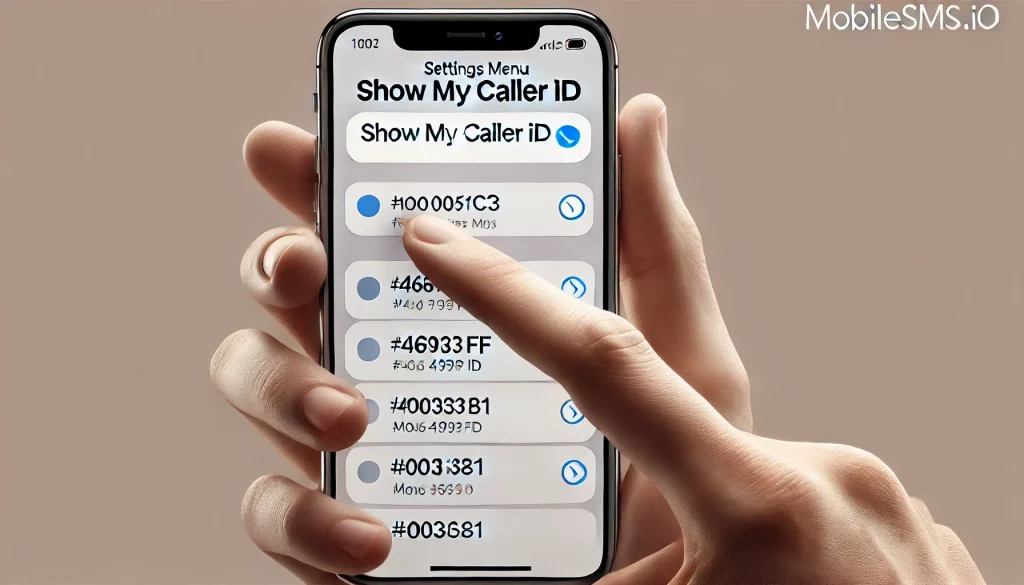
1. Accessing iPhone Settings and Turning On/Off Caller ID
Managing your caller ID name on an iPhone begins with accessing the settings. Here’s a step-by-step guide to help you navigate through this process:
- Open Settings: Unlock your iPhone and tap on the Settings app, which looks like a gear icon.
- Go to Phone Settings: Scroll down in the Settings menu until you find the Phone option. Tap on it to open the phone settings.
- Locate ‘Show My Caller ID’: Within the Phone settings, look for the option labeled Show My Caller ID. This setting controls whether your caller ID is displayed when making calls.
Note for iOS 17 and iOS 18 Users: Apple has reorganized some settings in recent iOS versions. If you can’t find “Show My Caller ID” in the Phone settings, try going to Settings > Apps > Phone, or use the search function at the top of the Settings app.
To turn your caller ID on or off:
Turn On Caller ID:
- Tap on Show My Caller ID.
- Toggle the switch to the On position (the switch will turn green).
Turn Off Caller ID:
- Tap on Show My Caller ID.
- Toggle the switch to the Off position (the switch will turn gray).
Implications of Each Choice:
- Turning On: When enabled, your caller ID will be displayed, allowing recipients to see your name and number. This can increase call pick-up rates as recipients are more likely to answer calls from known contacts.
- Turning Off: Disabling this feature means your number will appear as ‘Unknown’ or ‘Private’ to recipients. While this offers privacy, it might lead to a lower call pick-up rate since many people avoid answering unidentified calls.
Pro Tip: Some carriers, like Verizon, may not support hiding your caller ID through phone settings. In these cases, you can dial *67 before the phone number to hide your caller ID on a per-call basis.
Changing these settings is a straightforward process, but it’s crucial to understand how each choice affects your telecommunication experience. For those who prefer detailed customization of their caller ID name, additional steps involving carrier services or mobile apps may be required.
In some cases, such as with T-Mobile or Verizon, you may need to contact your carrier directly for specific instructions on updating your caller ID name. It’s also worth noting that some users have expressed a desire for mandatory caller ID due to its implications on privacy and communication efficiency.
In summary, accessing and managing your caller ID through iPhone settings provides a simple yet effective way to control how you’re identified during calls. However, for more advanced customization options or if you’re facing issues with the default settings, consider exploring discussions in forums such as Apple’s Support Community where users share their experiences and solutions related to caller ID management.
2. Updating Caller ID Name via Carrier or App on iPhone
Changing the caller ID name on an iPhone isn’t as straightforward as toggling settings in your device. For this, you will often need to go through your carrier or use a dedicated mobile app.
Options for updating the caller ID name:
- Carrier Services: Most carriers provide an option to update your caller ID name. This can usually be done through their customer service or online account management.
- Mobile Apps: Some carriers offer mobile apps that make it easier to manage various account settings, including your caller ID name. One example is the T-Mobile app.
Using the T-Mobile app to change your caller ID name:
1. Download and Install the T-Mobile App
Ensure you have the latest version of the T-Mobile app installed on your iPhone. You can download it from the App Store.
2. Log In to Your Account
Open the app and log in using your T-Mobile credentials. If you don’t have an account, you’ll need to create one.
3. Navigate to Settings
Once logged in, tap on the menu icon (usually three horizontal lines) located in the upper corner of the screen. Select Profile Settings or Account Settings depending on your app version.
4. Access Caller ID Settings
Scroll down until you find Caller ID Name or a similar option. Tap on it to open the settings for changing your Caller ID name.
5. Update Your Caller ID Name
Enter the new name you want displayed when you make calls. Remember that CNAM is limited to 15 characters. Confirm changes by tapping Save or Update.
6. Verification and Confirmation
You may receive a confirmation email or SMS indicating that your Caller ID name has been successfully updated. Allow 24-72 hours for the change to fully propagate across all networks.
Carrier-Specific Instructions for 2025:
- AT&T: Log into your myAT&T account online or via the app, go to Profile > Personal Info > Display Name.
- Verizon: Use the My Verizon app or website, navigate to Account > Profile Settings > Name ID.
- US Mobile: Access your dashboard and update caller ID under Account Settings.
- Mint Mobile: Contact customer support via chat or phone, as self-service CNAM updates are not currently available.
Updating your caller ID name using a carrier-specific app like T-Mobile ensures that all calls made from your iPhone will display the new information accurately, enhancing communication and trust with your contacts.
3. Restarting Your iPhone After Changing Caller ID Name
Restarting your iPhone is a crucial step to ensure that changes to your caller ID name are fully integrated. Once you update the caller ID name through your carrier or app, a simple restart can help synchronize the changes across all network services.
However, some users have reported issues with their iPhones not restarting properly after such changes. If you encounter any problems, you might want to check out this Apple discussion thread for potential solutions.
- For iPhone X and later: Press and hold the side button and either volume button until the slider appears.
- For iPhone SE, 8, and earlier: Press and hold the side (or top) button until the slider appears.
- Slide to Power Off.
- Wait 30 seconds before turning it back on by holding the side button again until you see the Apple logo.
Additional Step – Reset Network Settings: If your caller ID changes still aren’t showing after a restart, try resetting your network settings. Go to Settings > General > Transfer or Reset iPhone > Reset > Reset Network Settings. Note that this will forget your saved Wi-Fi passwords.
Restarting ensures that your new caller ID name is recognized by all networks and displayed correctly on recipients’ screens, providing a seamless calling experience.
Step-by-Step Guide to Changing Caller ID Name on Android
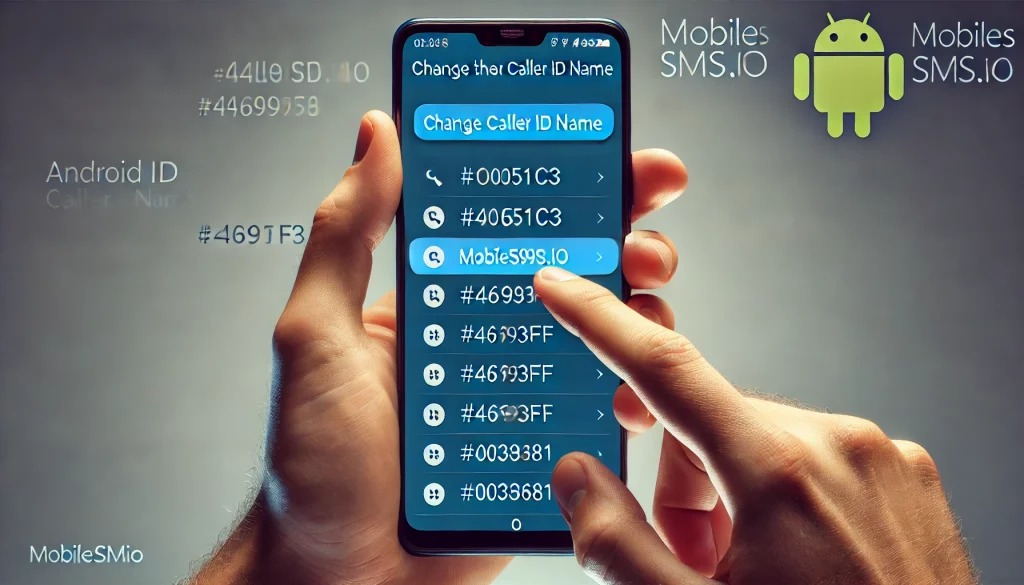
1. Accessing Android Settings and Contacting Your Carrier for Changes
Changing your caller ID name on an Android device involves a few steps that may vary depending on your carrier and the type of phone you have.
Accessing Settings
- Open Settings: Start by locating the Settings app on your Android device. This is typically represented by a gear icon.
- Navigate to Google Account: Scroll down and select Google, then tap on Manage your Google Account.
- Personal Info: Within the Google Account settings, find the section labeled Personal Info. This is where you can update details like your name, email, and phone number.
Updating your name in these settings can sometimes influence how your caller ID appears to others. However, this method might not be sufficient for all carriers.
Android 14 and 15 Users: Google has introduced new caller ID verification features. You may see options for “Verified Calls” in your Phone app settings, which displays verified business information. For personal caller ID changes, you’ll still need to contact your carrier.
Contacting Your Carrier
Unlike iPhones, where some changes can be made directly through the phone’s settings or an app, Android devices often require carrier intervention. The caller ID name (CNAM) data is stored and managed by the carrier.
Steps to Take:
- Call Customer Service: Use your carrier’s customer service number to reach out for assistance.
- Provide Identification: Be prepared to verify your identity and account details.
- Request Change: Specifically ask for a change in your caller ID name. Some carriers might allow you to do this through their website or mobile app instead of calling.
Examples of Carrier Procedures:
- T-Mobile: Offers changes via their website or T-Mobile app.
- Verizon: Requires calling customer service or visiting a local store.
- AT&T: Allows changes through their online portal under profile settings.
- Google Fi: Update through the Google Fi app under Account > Phone settings.
- Visible: Contact support through the Visible app chat feature.
Understanding these steps ensures that when you change your caller ID name on an Android device, it reflects accurately during calls. Different carriers have unique procedures, so contacting them directly is often the most reliable method.
Continuing with this process guarantees that modifications are properly integrated into the network system, ensuring that your updated caller ID name appears correctly on the recipient’s screen during calls.
2. Using Mobile Apps for Caller ID Changes on Android Devices
You can also change the caller ID name on Android devices using various mobile apps. These apps usually have a simple interface, making it easier to manage your caller ID settings without having to contact your carrier directly.
Available Mobile Apps:
1. T-Mobile Name ID:
For T-Mobile users, the T-Mobile Name ID app allows you to update your caller ID name directly from your device.
Steps:
- Download and install the T-Mobile Name ID app from the Google Play Store.
- Open the app and log in with your T-Mobile account credentials.
- Navigate to the “Caller ID” section and update your name as desired.
2. AT&T Call Protect:
AT&T customers can use the AT&T Call Protect app to change their caller ID name.
Steps:
- Install AT&T Call Protect from the Google Play Store.
- Sign in with your AT&T account information.
- Access the caller ID settings and input your new name.
3. Verizon Caller Name ID:
Verizon offers the Verizon Caller Name ID app for managing caller ID names.
Steps:
- Download Verizon Caller Name ID from the Google Play Store.
- Log in with your Verizon account details.
- Update your caller ID name in the designated section.
4. Hiya:
Hiya is a third-party app that supports various carriers and provides enhanced caller identification features. You can find it on both Android and iOS platforms, making it a versatile option for changing your caller ID name.
Steps:
- Install Hiya from the Google Play Store or Apple App Store.
- Follow the on-screen instructions to set up an account.
- Adjust your caller ID settings within the app.
5. Truecaller:
Truecaller is another popular option with over 350 million users worldwide in 2025. It offers caller ID customization along with spam blocking.
Steps:
- Download Truecaller from the Google Play Store.
- Create an account using your phone number.
- Go to Settings > Edit Profile to update how your name appears.
- Note: This updates your name in Truecaller’s database, which many Android users rely on for caller identification.
These apps simplify the process of changing your caller ID name, offering an alternative method compared to navigating through Android settings or contacting carriers directly for assistance.
3. Restarting Your Android Device After Changing Caller ID Name
Restarting your Android device is crucial to ensure that the changes to your caller ID name are fully integrated and reflected properly. Once you’ve made the necessary updates via your carrier or a mobile app, a reboot helps in refreshing the phone’s system and applying the new settings.
Steps to restart your Android device:
- Press and hold the power button on your Android device until the power menu appears.
- Select “Restart” from the menu. If this option isn’t available, choose “Power off” and then turn it back on manually after a few seconds.
- Wait for your device to reboot completely.
For Samsung Galaxy Users (2025 Models): Press and hold the side button and volume down button simultaneously, then tap “Restart.”
For Google Pixel Users: Press and hold the power button for about 5 seconds, then tap “Restart.”
Additional Troubleshooting: If the caller ID change doesn’t appear after restarting, try toggling Airplane Mode on and off. This forces your phone to reconnect to the cellular network and can help refresh your caller ID information.
By restarting, you ensure that all changes made in the Android settings or Google Account settings are effectively applied. This step is essential in confirming that your new caller ID name will be displayed correctly during calls.
Remember, skipping this step might delay the update process, making it harder for you to see if the changes have taken effect immediately.
Alternative Solutions for Caller ID Privacy
Sometimes changing your caller ID name through your carrier isn’t enough, or you may need additional privacy for specific situations. Here are some alternative approaches to consider.
Using Secondary Phone Numbers
A secondary phone number can provide complete separation between your personal and professional communications, or give you privacy when dealing with unfamiliar contacts.
Benefits of a secondary number:
- Keep your primary number private when selling items online or using dating apps
- Create a professional identity separate from your personal phone
- Avoid spam calls reaching your main number
- Use for account verifications without exposing your primary number
Services like MobileSMS.io offer non-VoIP phone numbers that work reliably for verifications and calls. Unlike typical VoIP services, these numbers are registered as real mobile numbers, making them more trustworthy to recipients and accepted by services that block VoIP numbers. The All Services 30-day rental plan provides flexibility for those who need temporary or rotating numbers for privacy.
VoIP and Virtual Number Services
Virtual phone number services offer another layer of flexibility:
- Google Voice: Free service that provides a secondary number with customizable caller ID settings.
- TextNow: Offers free phone numbers with calling capabilities.
- Hushed: Paid service with disposable numbers for privacy.
Important Note: Many services and verifications now block VoIP numbers. If you need a number that will be accepted everywhere, consider using a non-VoIP service like MobileSMS.io, which specializes in USA phone numbers that work for all verifications and display proper caller ID information.
Important Considerations When Changing Caller IDs
Carrier Limitations
Not all carriers allow changes to the caller ID name. Depending on your service provider, you might encounter varying policies and procedures. For instance:
- T-Mobile: Offers an in-app solution for changing the caller ID name.
- AT&T: Typically allows changes through their online portal or customer service.
- Verizon: Might require contacting customer support to update the caller ID name.
- MVNOs (Mint Mobile, Visible, etc.): Often have limited options and may require contacting support directly.
- Prepaid Plans: Some prepaid carriers restrict CNAM changes entirely.
These differences mean that your ability to change the caller ID name can be limited by your carrier’s policies. Complex procedures may involve filling out forms or waiting for approval, which can delay the process.
Impact on Communication
Updating your caller ID can significantly affect communication with your contacts. A recognizable caller ID increases the likelihood of your calls being answered. Here are some key impacts:
- Enhanced Trust: A clear and accurate caller ID fosters trust, ensuring recipients know who is calling.
- Professionalism: For business calls, a professional caller ID creates a positive impression and can enhance client relations.
- Personal Connections: Friends and family are more likely to pick up when they see a familiar name.
- Spam Filter Avoidance: Properly configured caller ID helps your calls avoid being flagged as potential spam by carrier filtering systems.
Overall Call Experience
The overall call experience is also influenced by how your updated caller ID integrates into existing contact lists and call logs. Some considerations include:
- Syncing Issues: Ensure that changes sync properly across all devices to avoid confusion.
- Integration with Apps: Verify that third-party apps like WhatsApp or Viber reflect the updated caller ID during calls.
- Business Cards and Marketing: Update any materials that reference your phone number to match your new caller ID display name.
- Voicemail Greetings: Consider updating your voicemail to match your new caller ID name for consistency.
Legal Considerations
It’s important to understand the legal framework around caller ID:
- Truth in Caller ID Act: In the United States, it’s illegal to transmit misleading or inaccurate caller ID information with the intent to defraud, cause harm, or wrongfully obtain anything of value.
- Legitimate Uses: Changing your name for personal preference, business branding, or privacy (when not for fraudulent purposes) is perfectly legal.
- Business Regulations: Some industries, like healthcare and finance, have specific regulations about caller ID display requirements.
Keeping these considerations in mind ensures a smooth transition when changing your caller ID name, enhancing both personal and professional communication.
Troubleshooting Common Caller ID Issues
Even after following all the steps correctly, you might encounter issues with your caller ID. Here are solutions to the most common problems:
Caller ID Not Updating
Problem: You’ve changed your caller ID name, but recipients still see the old name or just your number.
Solutions:
- Wait 24-72 hours for changes to propagate across all carrier databases
- Restart your phone to refresh network connections
- Toggle Airplane Mode on and off
- Contact your carrier to confirm the change was processed
- Ask the recipient to delete your contact and let your caller ID display fresh
Caller ID Showing as “Unknown” or “Blocked”
Problem: Your calls show as Unknown or Blocked even though you haven’t hidden your caller ID.
Solutions:
- Check that “Show My Caller ID” is enabled in your phone settings
- Remove any *67 prefix if you’ve been dialing it habitually
- Contact your carrier to ensure caller ID blocking isn’t enabled at the account level
- Verify that your account is in good standing (some carriers block caller ID for past-due accounts)
Caller ID Showing Wrong Name
Problem: Recipients see a different name than what you’ve set.
Solutions:
- The recipient may have you saved under a different name in their contacts
- Your old CNAM might be cached in some carrier databases – this can take up to 30 days to fully update
- Request your carrier perform a “CNAM dip” to verify what’s in their database
- If you recently ported your number, the previous owner’s information might still be associated with it
Calls Being Flagged as Spam
Problem: Your legitimate calls are being marked as “Potential Spam” or “Scam Likely.”
Solutions:
- Register your number with free calling registries like Free Caller Registry or First Orion
- Ensure your CNAM matches your actual identity
- Avoid making a high volume of calls in a short period
- Contact major carriers directly to whitelist your number
- Consider using a verified business caller ID service if you make frequent business calls
FAQs (Frequently Asked Questions)
What is Caller ID and why is it important?
Caller ID is a feature that displays the name and number of the incoming caller. It plays a crucial role in communication by helping recipients identify who is calling, which can enhance call pick-up rates and create positive first impressions. In 2025, with increased spam calling, having a properly configured caller ID is essential for ensuring your legitimate calls are answered.
How do I change my Caller ID name on an iPhone?
To change your Caller ID name on an iPhone, access the Settings app, locate the ‘Show My Caller ID’ option under Phone settings, and follow the instructions to either update it through your carrier or a mobile app. Remember to restart your iPhone after making changes for them to take effect. Note that changing the displayed name requires contacting your carrier, as the phone setting only toggles visibility.
Can I change my Caller ID name on Android devices?
Yes, you can change your Caller ID name on Android devices by accessing the settings and contacting your carrier. Additionally, there are mobile apps available like T-Mobile Name ID, Hiya, and Truecaller that can assist with this process. Restarting your device after making changes is also necessary to see the updates reflected.
Why might I need to contact my carrier to change my Caller ID name?
Not all carriers allow changes to the Caller ID name directly through device settings. The CNAM (Caller ID Name) is stored in carrier databases, not on your phone. In most cases, you need to contact your carrier for assistance due to their specific policies or procedures regarding Caller ID updates.
What should I consider before changing my Caller ID name?
Before changing your Caller ID name, consider that not all carriers permit these changes, and some may have complex procedures involved. Additionally, updating your caller ID can impact how contacts perceive calls from you, affecting overall communication experiences. Also be aware of legal requirements – your caller ID should accurately represent your identity.
Is it necessary to restart my phone after changing my Caller ID name?
Yes, it is important to restart your phone after changing your Caller ID name on both iPhone and Android devices. This ensures that all changes are fully integrated and reflected when making calls. You should also allow 24-72 hours for changes to propagate across all carrier networks.
How long does it take for Caller ID changes to take effect?
While changes are often processed immediately by your carrier, it can take 24-72 hours for the new CNAM to propagate across all carrier databases nationwide. Some recipients might see the old name until their carrier’s cache refreshes.
Can I have different Caller ID names for different calls?
With a single phone number, you cannot dynamically change your Caller ID name per call. However, you can use services like Google Voice or MobileSMS.io to have multiple numbers with different caller ID configurations for different purposes – one for personal use and another for business, for example.
Why does my Caller ID show differently to different people?
If a recipient has you saved in their contacts, your saved name will override your CNAM display. Additionally, different carriers use different CNAM databases, which can cause slight variations in how your name appears. Third-party caller ID apps like Truecaller also maintain their own databases that might show different information.