

Switching from a free number to a private, long-term number is essential to avoid account lockouts and ensure uninterrupted access to platforms like Google, WhatsApp, and Telegram. Free numbers often expire quickly and are blocked by major platforms due to their shared nature, leaving you vulnerable to security risks. Here’s how you can make the switch:
- List all accounts linked to your free number: Use email searches and password managers to track accounts tied to your number.
- Get a private number: Opt for a dedicated, real SIM-card number from providers like MobileSMS.io. These are more reliable and accepted by most platforms.
- Keep both numbers active during migration: Update your accounts one by one, ensuring a smooth transition without losing access.
- Update accounts with new number: Navigate to account settings, replace the old number with the new one, and verify using SMS codes.
- Test and secure updates: Confirm 2FA and notifications are working with the new number. Keep backup codes in a password manager.
- Retain old number temporarily: Hold onto the free number for 2–4 weeks to catch any missed updates.
Switching ensures better security, fewer disruptions, and long-term stability for your accounts.
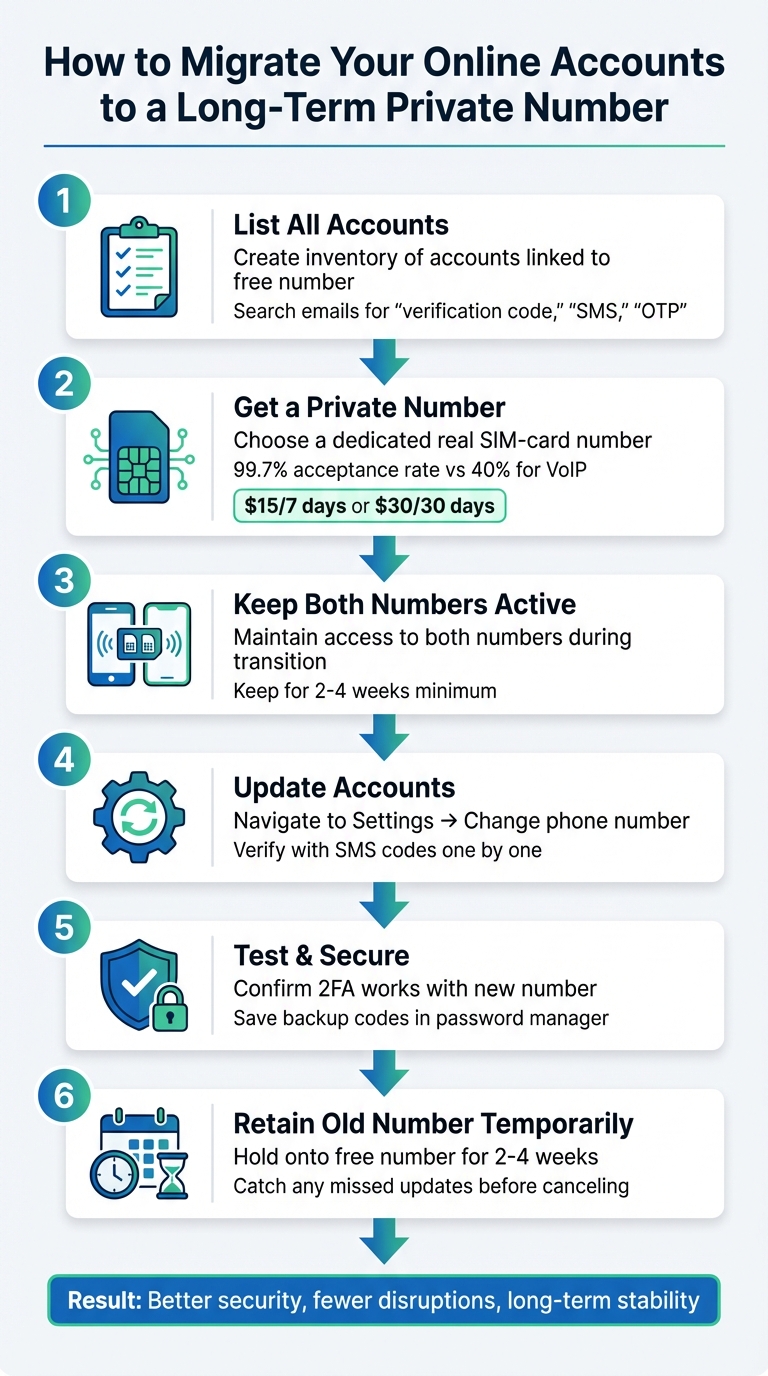
6-Step Process to Migrate Phone Numbers for Online Accounts
Preparation Before Migration
List All Accounts Tied to Your Free Number
Start by creating a detailed inventory of every account linked to your free number. Use a secure spreadsheet to document key details like the account name, username, associated email, and the last time you verified it. This step-by-step approach ensures you won’t overlook any accounts when it’s time to migrate.
To find accounts you might have forgotten, search your email inbox using terms like "verification code", "SMS", "OTP," or "phone confirmed." Don’t stop there – check your browser’s password manager for saved accounts and review app settings on your phone. Pay special attention to banking apps, social media platforms, messaging services, and less obvious accounts like PayPal, Venmo, crypto exchanges, or gaming platforms (e.g., Battle.net, League of Legends). Before deleting your free number, export your SMS history from your service dashboard to capture any additional verification messages.
This meticulous process ensures no account slips through the cracks during your migration.
Get a Long-Term Private Number
To replace your free number, visit MobileSMS.io’s long-term number page and choose a dedicated US number. Plans start at $15 for 7 days or $30 for 30 days, with auto-renewal options to avoid service interruptions. Opt for real SIM-card numbers instead of VoIP alternatives – real numbers boast a 99.7% acceptance rate on platforms like Google, WhatsApp, and Telegram, compared to around 40% for VoIP numbers.
Once you’ve secured your new number, test it immediately by requesting a verification code through the provider’s dashboard. This ensures the number works seamlessly with the accounts you plan to migrate. Enabling auto-renewal is a smart move to avoid losing access down the line, which could lock you out of accounts requiring periodic two-factor authentication (2FA).
Keep Access to Both Numbers During Transition
After obtaining your new number, keep both numbers active to ensure a seamless transition. Do not cancel your free number until all linked accounts are successfully updated and verified. Many platforms require sending a verification code to your current free number before accepting a new one, so maintaining access to both is crucial.
Plan to keep both numbers for at least 2–4 weeks after migration. This overlap allows you to handle any delayed 2FA requests or account recovery needs. Set a calendar reminder to periodically check your old number’s SMS logs. Once you notice no activity for two consecutive weeks, you can safely discontinue the free number service. This buffer period acts as a safety net, reducing the risk of being locked out of important accounts.
sbb-itb-5a89343
Step-by-Step Migration Process
Follow this guide to ensure a smooth and secure transition when updating your phone number. Start by navigating to your Account or Personal Info section in Settings or Security. From there, select your current phone number, click Edit or Change, and input your new long-term private number. Verify it by entering the SMS code sent to your new number.
Access Account Settings for Phone Number Updates
Log into your account using a verified device – a phone or computer you’ve already authenticated. This helps avoid unnecessary security flags. Once logged in, explore sections like Settings, Security, Account, or Personal Info. For example:
- Google accounts: Visit your Google Account page, click Personal info, then Phone, and select your current number to edit it.
- Signal users: Open Settings, tap Account, and select Change Phone Number.
While specific labels may differ across platforms, most services follow a similar structure to unlock and update accounts with new phone numbers.
Enter Your New Long-Term Private Number
Once in the phone number settings, click Edit or Change and enter your new long-term private number from MobileSMS.io. An SMS verification code will be sent to this number. Access your MobileSMS.io dashboard to retrieve the code. For some rental types, you may need to click "Activate" to view incoming messages, so familiarize yourself with the interface.
Be aware that some platforms, like Google, may enforce a one-week waiting period before allowing sensitive actions (e.g., password changes) with the new number. Additionally, platforms like Signal make the "Change Number" process irreversible, so double-check the number before confirming.
Verify and Test the New Number
After entering and verifying the code, test the update by signing in from another device or a private browser window. Trigger a two-factor authentication (2FA) prompt to ensure the code is sent to your new number instead of the old one.
Keep access to both your old and new numbers during this phase to avoid being locked out. Check your Security settings to confirm the new number is listed correctly. Generate fresh backup or recovery codes and store them securely in a password manager to safeguard against future issues. Look out for confirmation emails or platform notifications (e.g., "Security info was changed") to ensure the update was successful.
These steps will help you complete the migration while maintaining access to your old number until the process is fully finalized.
Platform-Specific Migration Instructions
Here’s a quick guide to updating your phone number on various platforms while keeping everything running smoothly. If you need more details, you can always refer back to the general migration steps.
Google Accounts
Head to your Google Account page and click on Personal info, then Phone. Select your current number, click Edit, and replace it with your new long-term private number from MobileSMS.io. Google will send a verification code via SMS – enter it to confirm the change. Keep in mind, Google imposes a one-week delay for sensitive updates, so don’t deactivate your old number during this time. Afterward, double-check your 2-Step Verification settings manually, as updating your number in Personal Info won’t automatically apply it to all Google services.
WhatsApp’s Change Number feature makes it easy to transfer your account – including chats, groups, and settings – to your new number. Before starting, ensure your new SIM card is active and can receive SMS. Go to Settings > Account > Change number, then input your old number followed by your new one (don’t forget the country codes). You can choose whether to notify your contacts, but group chats will automatically show a system notification. Verify your new number using the SMS code. If you’re switching devices, complete the number change first, back up your chats, and restore them on your new device.
Next up is Telegram, which keeps things simple.
Telegram
Updating your number on Telegram is a breeze. Open Settings, tap Account, and select Change Phone Number. Enter your new long-term private number and verify it with the SMS code sent to you. Telegram will automatically transfer your username, contacts, and cloud messages across all devices. Since there’s no device-specific migration process, take extra care to verify the new number before confirming.
Facebook and Instagram
Meta platforms like Facebook and Instagram use a centralized Accounts Center to manage contact details and security settings. Start by going to Settings > Accounts Center > Personal Details > Contact Info to update the number for login and recovery purposes. Then, navigate to Accounts Center > Password and Security > Two-Factor Authentication, select your account, tap Text Message, and choose Use different phone number to set up your new number for security codes. Enter the verification code when prompted, and save the backup codes immediately – using a password manager is a smart way to store them in case SMS delivery fails. If you’re managing an Instagram Business account, don’t forget to update your Public Business Information separately if you want to display a different number publicly than the one used for security.
Post-Migration Checklist
With your new number now active across all platforms, a few final steps will help secure your accounts and complete the migration process. Avoid deleting your old number right away to ensure a smooth transition.
Verify 2FA and Notifications Across All Accounts
Log in to each account you migrated and initiate a manual 2FA request to confirm that codes are being sent to your new number. Start with the most critical accounts – usually your primary email, banking, and workplace logins. Use your MobileSMS.io dashboard to monitor incoming codes in real-time. If you’re using a standard All Services rental plan (not Premium), make sure to click the "Activate" button in the dashboard to view stored SMS codes, as they won’t appear automatically.
This step ensures that all updates made during the migration are functioning correctly. Once you’ve confirmed the new number is working, go ahead and remove the old number from each account’s security settings. While you’re at it, save your one-time backup codes in an encrypted password manager. These codes will serve as a fallback if SMS delivery ever fails. After verifying your most important accounts, proceed to the remaining ones.
Keep Free Number Access Temporarily
Hold on to your old number for a short period during the transition. Keeping access to the old number for 2–4 weeks gives you a safety net for delayed verifications or any accounts you might have overlooked. This overlap ensures you can still receive unexpected verification requests if needed.
Since your new 30-day rental provides a full month of service, use this time as your transition period. Only release the old number once you’re confident all accounts are updated and you’ve successfully logged in using the new number for two-factor authentication.
Renew Your Long-Term Number as Needed
To keep your long-term number active, make sure to renew it on time. Enable auto-renewal in your dashboard settings to prevent service interruptions that could lock you out of accounts protected by 2FA. Auto-renewal works with credit or debit cards and eliminates the risk of forgetting to renew. If you prefer more control over your expenses, you can opt for manual renewal – just set a calendar reminder a few days before your number expires.
For uninterrupted service and added convenience, consider upgrading to a premium plan, which eliminates the need for manual activation entirely.
Conclusion
Switching from a free number to a long-term private number doesn’t have to be overwhelming. With the right approach – like listing all your accounts, keeping both numbers secure during the process, and updating each platform carefully – you can make the transition smoothly while keeping your account access intact. The process is more about being prepared and thorough than rushing through it.
A long-term private number offers a level of stability and privacy that temporary phone numbers for SMS verification just can’t provide. Real SIM-card numbers are dependable for platforms like Google, WhatsApp, and banking apps, ensuring seamless access for password resets and two-factor authentication. Unlike temporary numbers, which can expire or be reassigned, a renewable long-term number stays exclusively yours.
During the transition, it’s wise to keep your old number active until you’re confident that your accounts are fully updated and functioning with the new number. This extra step ensures nothing falls through the cracks.
FAQs
What if I lose access to my old number mid-migration?
If you lose access to your old phone number during the migration process, it’s important to act fast to protect your accounts. Ideally, you should maintain access to your old number throughout the transition so you can receive verification codes or important notifications.
If you no longer have access to your old number, try verifying your accounts using your new private number. If that doesn’t work, reach out to the platform’s support team for assistance. Keeping access to both numbers during the process helps reduce risks and ensures everything goes smoothly.
How do I update my phone number for 2FA separately from my profile number?
To change your 2FA phone number without altering your profile number, head to the security or account verification settings of the platform where you’ve enabled 2FA. Look for the 2FA or security section, choose the option to update your phone number, and follow the provided steps. If needed, ensure you still have access to your old number to complete the verification process during the update.
What should I do if a site won’t accept my new number?
To start, make sure your new number is active and functioning as expected. If you’re running into problems, verify whether the platform has restrictions on virtual or VoIP numbers. It’s also a good idea to keep your old number accessible during the transition to prevent losing access to important accounts. Document each step of the migration process, including saving confirmation codes, to help resolve any issues that might come up. If the platform outright rejects your new number, reach out to their support team or consider using an alternative verified number.