

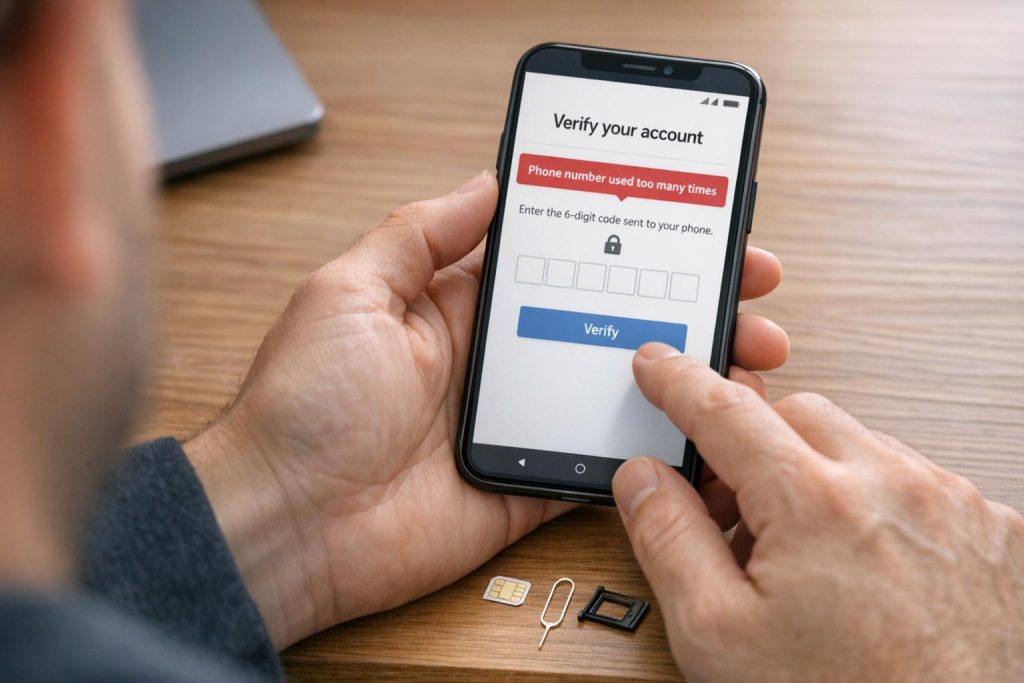
If you’re seeing the error “Phone Number Used Too Many Times” while creating or recovering a Gmail account, it means the number has reached Google’s limit for verifications – usually 2 to 4 accounts. This restriction is permanent, even if you unlink the number from those accounts. Here’s what you need to know:
- Why It Happens: Google enforces limits to prevent abuse. Numbers from VoIP services, recycled numbers, or mismatched IP-country combinations are often flagged.
- Quick Fixes: Double-check your number formatting, try a different network or device, or wait 24–48 hours if you’ve hit a temporary limit.
- Permanent Solution: Use a new, non-VoIP number. Services like MobileSMS.io offer real SIM-based numbers that pass Google’s checks.
To avoid future issues, assign unique numbers to each Gmail account and enable multi-factor authentication for added security.
Common Causes of the ‘Phone Number Used Too Many Times’ Error
Here are three primary reasons why you might encounter the ‘Phone Number Used Too Many Times’ error. Understanding which one applies to your situation can help you figure out the best way to fix it.
Using One Phone Number Across Too Many Accounts
Google relies on phone numbers to confirm account legitimacy. To prevent misuse, there’s a limit on how many accounts a single number can verify. Typically, users hit this limit after 4 verifications. Once that happens, the number gets permanently flagged, even if you unlink it from existing accounts.
Now, let’s look at how recycled or previously used numbers might be causing the issue.
Recycled or Previously Registered Numbers
Phone carriers often reassign old numbers to new customers. If your number was previously used to verify Google accounts, you inherit its history – including any verification limits from the previous owner. This means you could activate a new SIM card and face this error immediately, simply because of how the number was used before.
This is especially common with prepaid plans, where number recycling happens more often. Numbers from free "receive SMS" services are another frequent culprit. These numbers are shared by many users and are typically maxed out long before you attempt to use them.
Lastly, the type of phone number you’re using can also play a role.
Unsupported or High-Risk Number Types
Google doesn’t treat all phone numbers the same. When you attempt verification, Google performs a carrier lookup to determine the type of line. If your number is flagged as a VoIP line (from internet-based phone services), landline, or a recently recycled number, the system will block the SMS code.
"If the database flags the number as a Voice over IP (VoIP), landline, or a recently recycled number, the system automatically blocks the SMS verification code." – Bulk PVA Services
In addition, Google considers the context of your signup. For example, if your IP address doesn’t match your phone number’s country, it raises a red flag and could lead to rejection, even if the number itself is otherwise valid.
Quick Fixes to Try Before Switching Numbers
If your number hasn’t been permanently flagged, there are a few steps you can take to address temporary issues. Before jumping to the conclusion that you need a new phone number, give these quick fixes a shot. Often, the problem isn’t with your number being flagged but could be something as simple as a formatting error, a network issue, or a temporary rate limit that resolves itself.
Check for Typos in the Number You Entered
One of the most common reasons for this error is a simple typo. A frequent mistake is entering the country code twice – for example, manually adding "+1" for the US when the country dropdown has already included it. This creates an invalid number, which Google won’t recognize.
Another common issue is adding a leading zero before the area code, a practice in some countries but incorrect for US numbers. Even a single missing or extra digit can stop an SMS from being delivered. Double-check your number carefully before submitting.
Try a Different Device or Network
Google doesn’t just look at your phone number; it also evaluates other factors like your IP address, browser cookies, and device fingerprint as part of its risk assessment.
"IP reputation, browser fingerprint, device locale, and signup velocity feed a risk score." – SMS-Act
If your session has been flagged, try opening an incognito window or switching to a different network to reset cookies and improve your IP reputation. If you’re on a desktop, consider switching to your phone instead. Certified digital marketing specialist Paul G-Wood notes that "Google treats device-based setups as lower risk than web-based signups." Setting up a Gmail account through Android Settings > Accounts > Add Account > Google can sometimes bypass these issues altogether.
Wait and Try Again Later
Repeated attempts can trip Google’s automated filters, making matters worse. There’s a daily limit of about five verifications per IP address, and exceeding that limit means retrying won’t help until the restriction resets.
The general advice is to wait 24 to 48 hours before trying again with the same number.
"Wait for 24 to 48 hours before attempting again. This allows any temporary blocks or limits to reset, giving you a fresh start." – ShrutNM, Community Expert
If you think the issue is related to your browser cache, clearing cookies and waiting 10 to 15 minutes might be enough to fix it. However, if it’s a true rate-limit issue, only time will resolve it. If the problem persists after 48 hours, it likely means your number has reached its permanent verification limit, and you’ll need to consider using a different number.
If none of these solutions work, the next step is to try non-VoIP numbers for online privacy.
Using a Non-VoIP Number to Get Past the Error
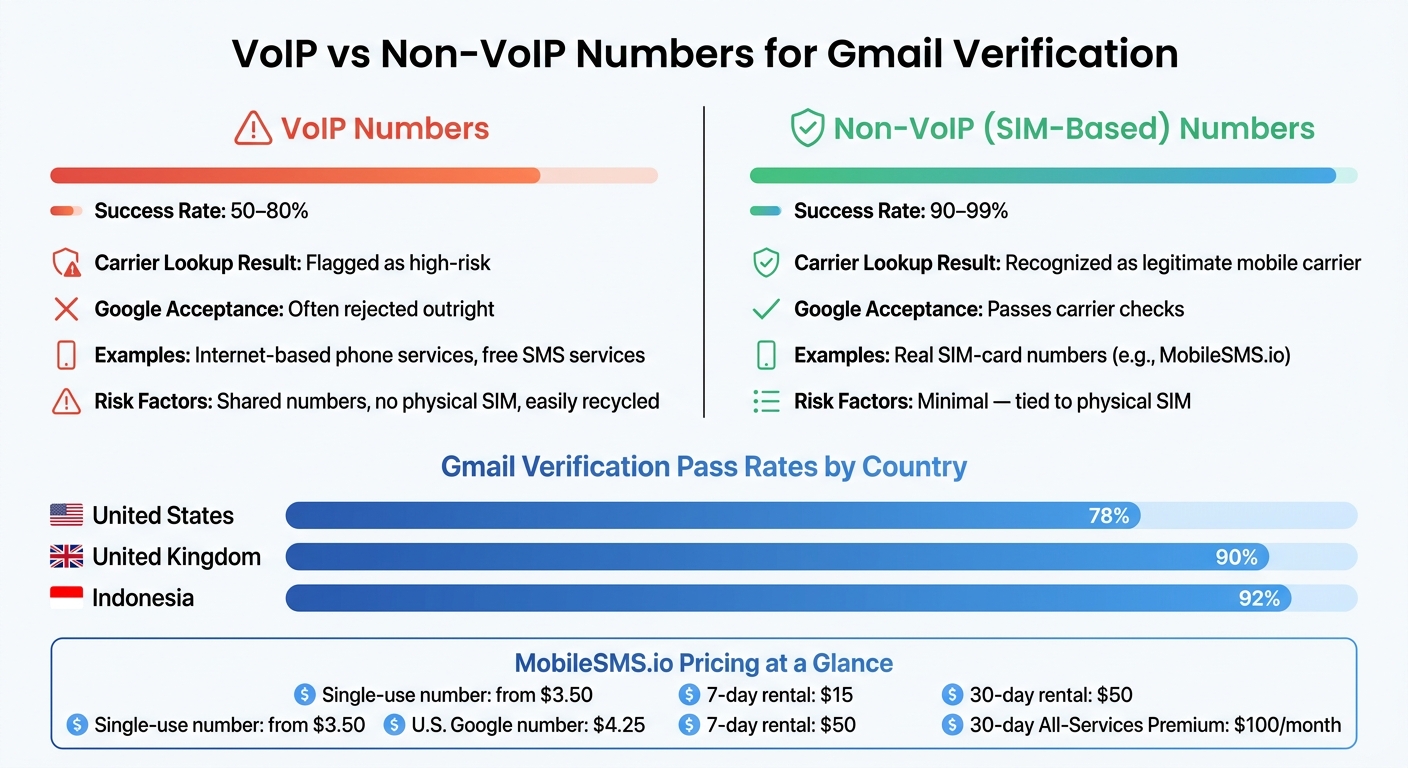
VoIP vs Non-VoIP Numbers for Gmail Verification: Success Rates & Security
If you’ve tried all the basic fixes and you’re still stuck on the Gmail verification screen, the problem might be your phone number type. The solution? Use Gmail without a phone number by utilizing a non-VoIP number to bypass the error reliably.
Why Non-VoIP Numbers Are More Effective for Verification
Google uses carrier lookup technology to check whether a phone number is tied to a real mobile carrier or a virtual VoIP (Voice over Internet Protocol) service. VoIP numbers are flagged as high risk and often rejected outright.
On the other hand, SIM-based, non-VoIP numbers meet Google’s legitimacy criteria. These numbers boast a 90–99% success rate for verification, compared to just 50–80% for VoIP numbers. In the U.S., Gmail’s verification pass rate is around 78%, which is lower than countries like Indonesia (92%) or the UK (90%) due to higher levels of abuse. Using a number from a country with a higher pass rate can boost your chances even more.
How MobileSMS.io Solves This Issue
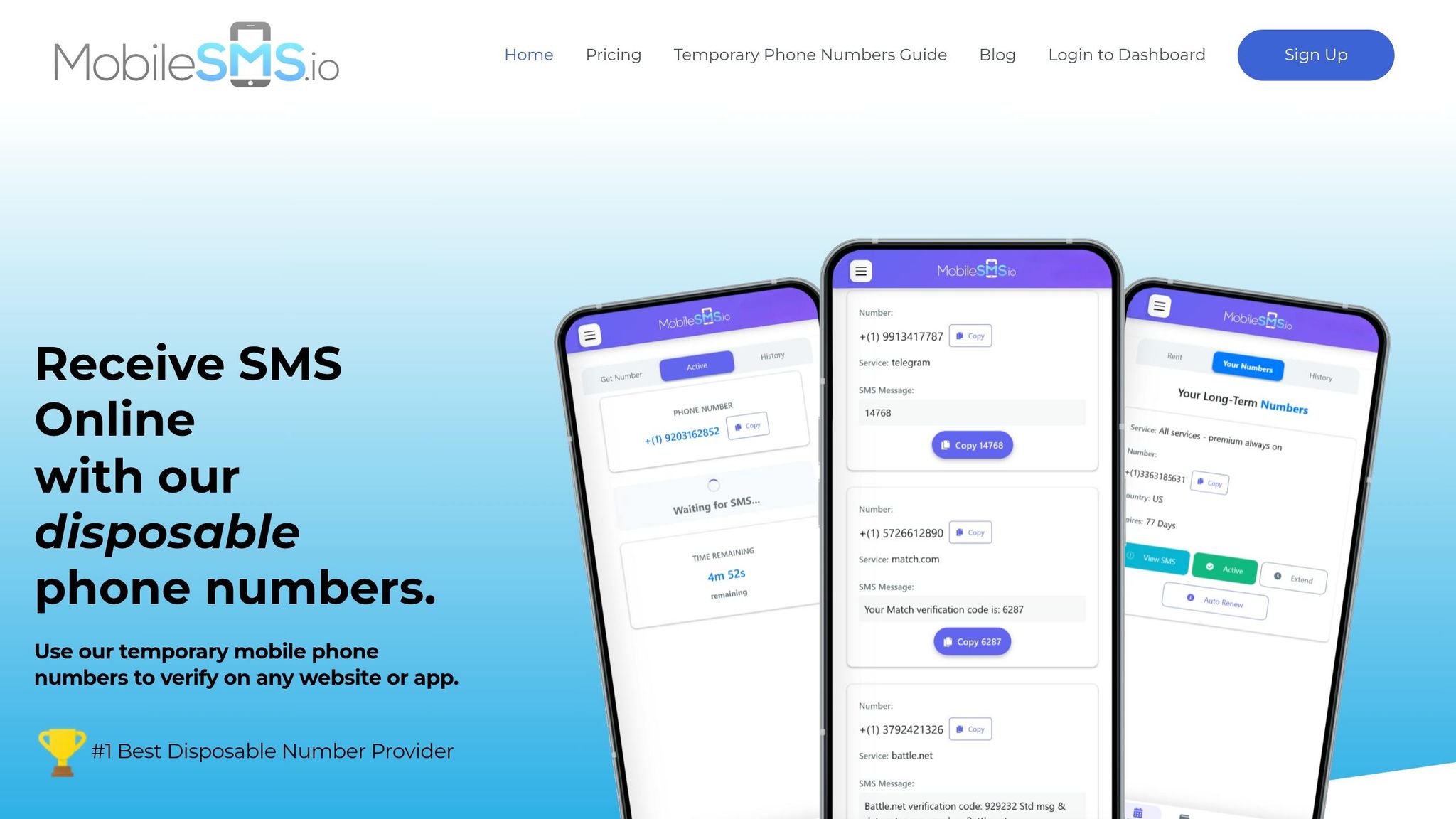
MobileSMS.io offers real SIM-card-based numbers from over 100 countries, specifically designed to pass Google’s carrier checks and avoid VoIP rejections.
"MobileSMS.io’s real SIM-card numbers are recognized as authentic by over 1,200 platforms, ensuring higher success rates for account verification and bypassing common VoIP restrictions." – MobileSMS.io
Their service is particularly effective for Gmail verification. For a one-time verification, you can get a single-use number starting at $3.50 (or $4.25 for a U.S.-specific Google number). The best part? You’re only charged if the SMS code is successfully received. For ongoing account management or re-verifications, long-term rentals are available starting at $15 for 7 days or $50 for 30 days, with support for multiple platforms.
Step-by-Step: How to Use MobileSMS.io for Gmail Verification
- Start with a clean browser session. Open a new browser profile or incognito window. Use a residential IP or a VPN that matches the country of the number you’re renting (e.g., a UK IP for a UK number). This helps avoid issues where the SMS code is silently blocked.
- Get a number from MobileSMS.io. Visit mobilesms.io, create an account, and add credits (minimum deposit is $5). Select Google as the platform, choose your country, and purchase a number. The number will appear in your dashboard instantly.
- Enter the number correctly. When Gmail prompts you for a phone number, use the dropdown to select the country and then enter the local portion of the number. Avoid manually typing the country code (e.g., "+1") if the dropdown already includes it, as this can cause errors.
- Retrieve the SMS code. Google will send a 6-digit code to the number. Check your MobileSMS.io dashboard – codes usually appear within seconds. Enter the code into Gmail before it expires.
- Secure your account right away. Once your account is verified, go to your Google Account settings and add a recovery email address you control. Then, enable 2-Step Verification using an authenticator app like Google Authenticator. Avoid relying solely on SMS for recovery, as the rented number may expire.
sbb-itb-5a89343
Best Practices for Gmail Account Security and Policy Compliance
Maintaining strong security and adhering to policies isn’t just about quick fixes – it’s about building reliable habits. These best practices build upon earlier solutions to ensure your Gmail accounts stay secure and compliant.
Use a Separate Number for Each Gmail Account
Assigning a unique phone number to every Gmail account is a smart move. It keeps accounts isolated in Google’s systems, meaning if one account faces issues, the others remain unaffected. Additionally, using non-VoIP numbers improves the chances of passing Google’s verification process, making them the better choice for long-term account stability.
Turn On Multi-Factor Authentication
Once your account is verified, it’s time to strengthen security by replacing SMS-based authentication with more secure multi-factor methods. SMS codes can be exploited through SIM swap attacks, where someone tricks your carrier into transferring your number to a different SIM card. Opt for Google Prompts or authenticator apps for stronger protection.
Here’s a quick breakdown of the available verification methods:
| Verification Method | Security Level | Best For |
|---|---|---|
| Passkeys | Highest | Password-free sign-in using biometrics |
| Security Keys | Highest | Advanced phishing protection |
| Google Prompts | High | Defense against SIM swap attacks |
| Authenticator App | High | Access without relying on mobile service |
| SMS/Voice Codes | Moderate | Basic security |
| Backup Codes | Emergency | Access if other methods fail |
To enable multi-factor authentication, navigate to Google Account → Security → 2-Step Verification and follow the steps. Don’t forget to download your backup codes during setup and store them securely. These codes can be a lifesaver, as account recovery through Google may take 3 to 5 business days if you lose access.
With a solid multi-factor authentication setup, you’ll have a much easier time managing and securing your accounts.
Use MobileSMS.io for Ongoing Account Management
While a one-time number might work for initial verification, it won’t help if you need to recover or re-verify your account later. That’s where MobileSMS.io comes in. They provide long-term rental numbers that stay active, ensuring you’re covered for future logins, account recovery, or re-verifications across platforms. Their affordable plans make it a practical solution for managing multiple Gmail accounts. By using a consistent, SIM-based number, you can ensure uninterrupted and secure access to your Gmail accounts over time.
Conclusion: How to Fix the Gmail Error and Keep Your Accounts Running
Here’s the bottom line: the "Phone Number Used Too Many Times" error happens because Google enforces a strict limit – once a number hits that limit, it’s permanently blocked for new verifications. While quick fixes like clearing your browser cache or changing networks might work temporarily, they won’t solve the issue if the number is blacklisted.
The dependable fix? Use a new, non-VoIP number. Non-VoIP numbers, like those from MobileSMS.io, are linked to real SIM cards, which pass Google’s carrier checks and bypass SMS verification. In contrast, VoIP numbers are often flagged and rejected.
One important tip: make sure your IP address matches the country of the number you’re using to avoid raising red flags.
"A number used on any Google account in the past cannot be reused on a new account, ever." – SMS-Act
For long-term reliability and security, MobileSMS.io offers 30-day All-Services Premium rentals starting at $100/month. These rentals provide a dedicated number for tasks like re-verifications, security prompts, and account recovery. This method not only resolves the error but also ensures your Gmail accounts stay secure. Combine this with multi-factor authentication for an added layer of protection.
FAQs
How can I tell if Gmail’s block is temporary or permanent?
If you’re encountering a block, it might just be temporary – often caused by a cooldown period or a security flag. To troubleshoot, you can try a few things: clear your browser cache and cookies, switch to an incognito window, or simply wait 24–48 hours before attempting again.
However, if the error continues across multiple devices or fresh browser sessions, or if the number keeps getting rejected even after waiting, the block is probably permanent and linked directly to the number itself.
Will changing my IP address or device actually help this error?
If you’re having trouble with repeated sign-up attempts, there are a few steps that might help. Google keeps an eye on device and network patterns, so switching things up can make a difference. Try using a different device, clearing your browser’s cache and cookies, or opening an incognito window – these can help reset your digital fingerprint.
Also, make sure your IP address matches the country of your phone number. If there’s a mismatch, it could trigger security flags. Using a reputable VPN or a residential proxy can help align your IP address and improve your chances of resolving the issue.
What should I set up after verification so I don’t need SMS again?
After verifying your account, it’s wise to set up extra recovery and security options to avoid relying on SMS verification in the future. Here’s what you can do:
- Add a recovery email: This provides a backup way to access your account if needed.
- Enable an authenticator app: Two-factor authentication through an app adds an extra layer of security.
- Generate Google backup codes: These one-time use codes can be a lifesaver in emergencies. Keep them in a safe place.
Taking these steps ensures you’ll still have access to your account, even if your original phone number is no longer available.