

Browser fingerprinting collects details about your device – like screen resolution, fonts, and time zone – to create a unique identifier. Unlike cookies or IP tracking, it doesn’t depend on stored data or networks, making it harder to reset. Testing your fingerprint helps you understand how visible you are online and what steps you can take to improve privacy.
Key Takeaways:
- What It Does: Fingerprinting identifies your device by analyzing browser and hardware attributes.
- Why Test It: It shows how easily you can be tracked, even in private browsing or with a VPN.
- How to Test: Use tools like Cover Your Tracks, Am I Unique?, and BrowserLeaks.
- How to Prepare: Set up a clean browser profile with no extensions or cached data.
- How to Reduce It: Adjust settings (e.g., Firefox
privacy.resistFingerprinting), use separate profiles, and limit tracking signals like disposable phone numbers.
Quick Steps:
- Create a new browser profile.
- Disable extensions and clear data.
- Test your fingerprint with specialized tools.
- Adjust settings and retest to see improvements.
Testing and managing your browser fingerprint is a practical way to protect your privacy and reduce online tracking.
Setting Up a Clean Test Environment
Why a Clean Environment Matters
Your regular browser setup is far from neutral. Extensions, cookies, saved logins, custom fonts, and personalized settings all contribute to your browser’s fingerprint. If you test in this environment, you’re not getting a clear baseline – you’re seeing the outcome of all those tweaks combined.
Extensions can be particularly troublesome. They may inject JavaScript, block APIs, spoof your user agent, or even alter how your browser handles canvas and WebGL. According to the AmIUnique project, which analyzed over 2 million fingerprints, uncommon extensions can actually make your browser stand out more – the exact opposite of what most people expect.
Cached data and cookies only add to the noise. They can affect your detected language, link your activity to past sessions, and give testing tools a skewed view of what a "fresh" visitor looks like.
How to Set Up Your Test Environment
To get accurate results, you’ll need to strip away the clutter from your everyday browsing environment. The best way to do this is by creating a dedicated test profile in your browser. Don’t rely on incognito mode – it doesn’t fully isolate your data.
Follow these steps to set up your test profile:
- Create a new profile using your browser’s profile manager (check the table below for instructions).
- Disable all extensions in the new profile.
- Clear cookies and cached data within this profile.
- Stick to default settings – this includes the user agent, time zone, language, and zoom level, as all of these contribute to your fingerprint.
| Browser | How to Create a New Profile |
|---|---|
| Google Chrome | Click your profile icon (top-right) → "Add" → "Continue without an account" |
| Mozilla Firefox | Go to about:profiles → "Create a New Profile" → "Launch profile in new browser" |
| Microsoft Edge | Click your profile icon → "Add profile" → "Add" → skip sign-in |
To clear cookies and cached data, navigate to Settings → Privacy and security → Clear browsing data in Chrome or Edge. Choose "All time" and select both options. In Firefox, go to Settings → Privacy & Security → Cookies and Site Data → Clear Data.
Once your profile is ready, test your fingerprint using the default settings. If you want to evaluate a specific privacy tool or setting, change just one variable at a time and retest. This way, you can see exactly how each change affects your fingerprint.
When it comes to network conditions, decide whether to test with or without a VPN. A VPN alters your IP, apparent location, and sometimes your time zone – all of which influence your fingerprint. Start with a test that reflects your true baseline (no VPN), then run another test with the VPN on if that’s part of your usual browsing routine. Just make sure not to toggle the VPN mid-session, as it can skew your results.
Once your clean profile is set up, you’re ready to dive into fingerprint testing with specialized tools.
Tools for Testing Your Browser Fingerprint
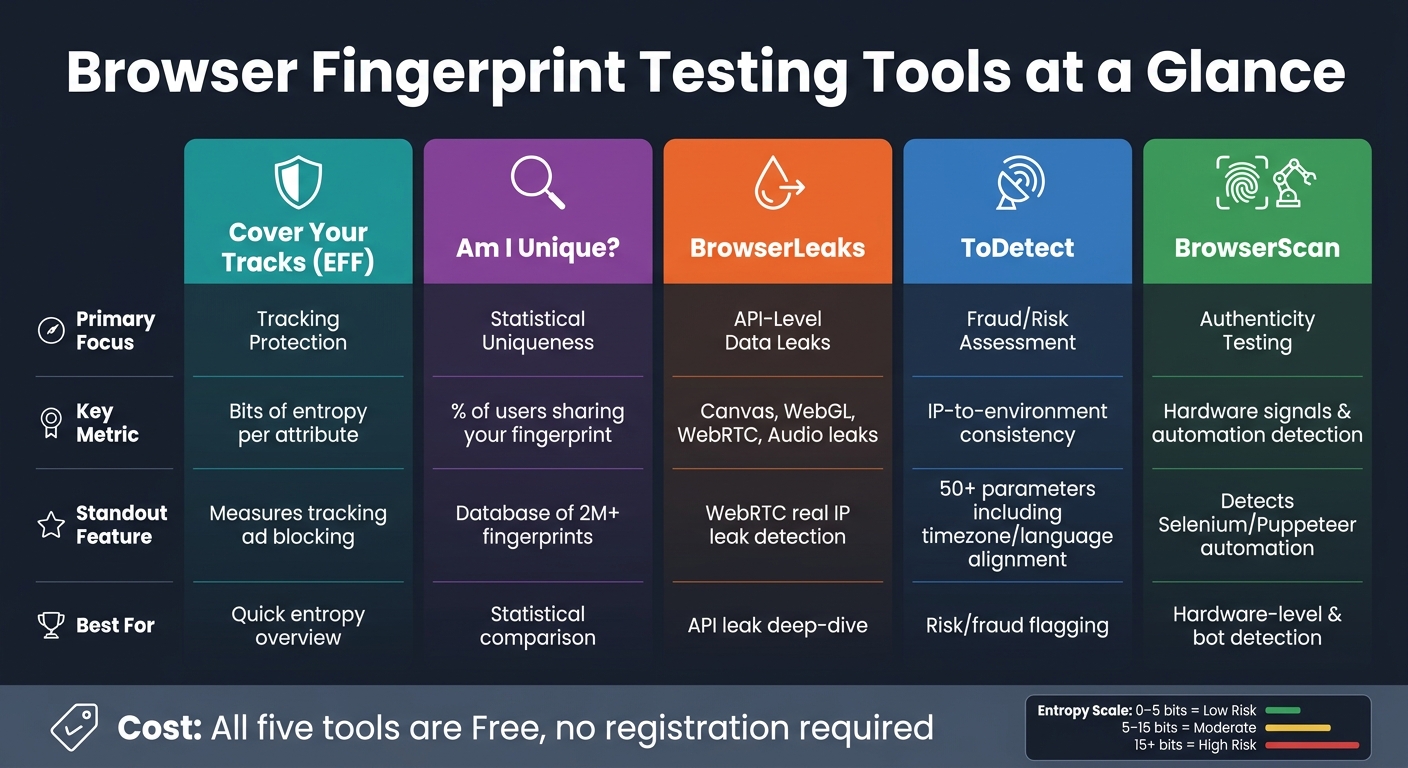
Browser Fingerprint Testing Tools Compared
Each of these tools examines different parts of your browser fingerprint, giving you a clearer picture of how identifiable you might be online. Here’s a breakdown of what they offer:
Cover Your Tracks by EFF
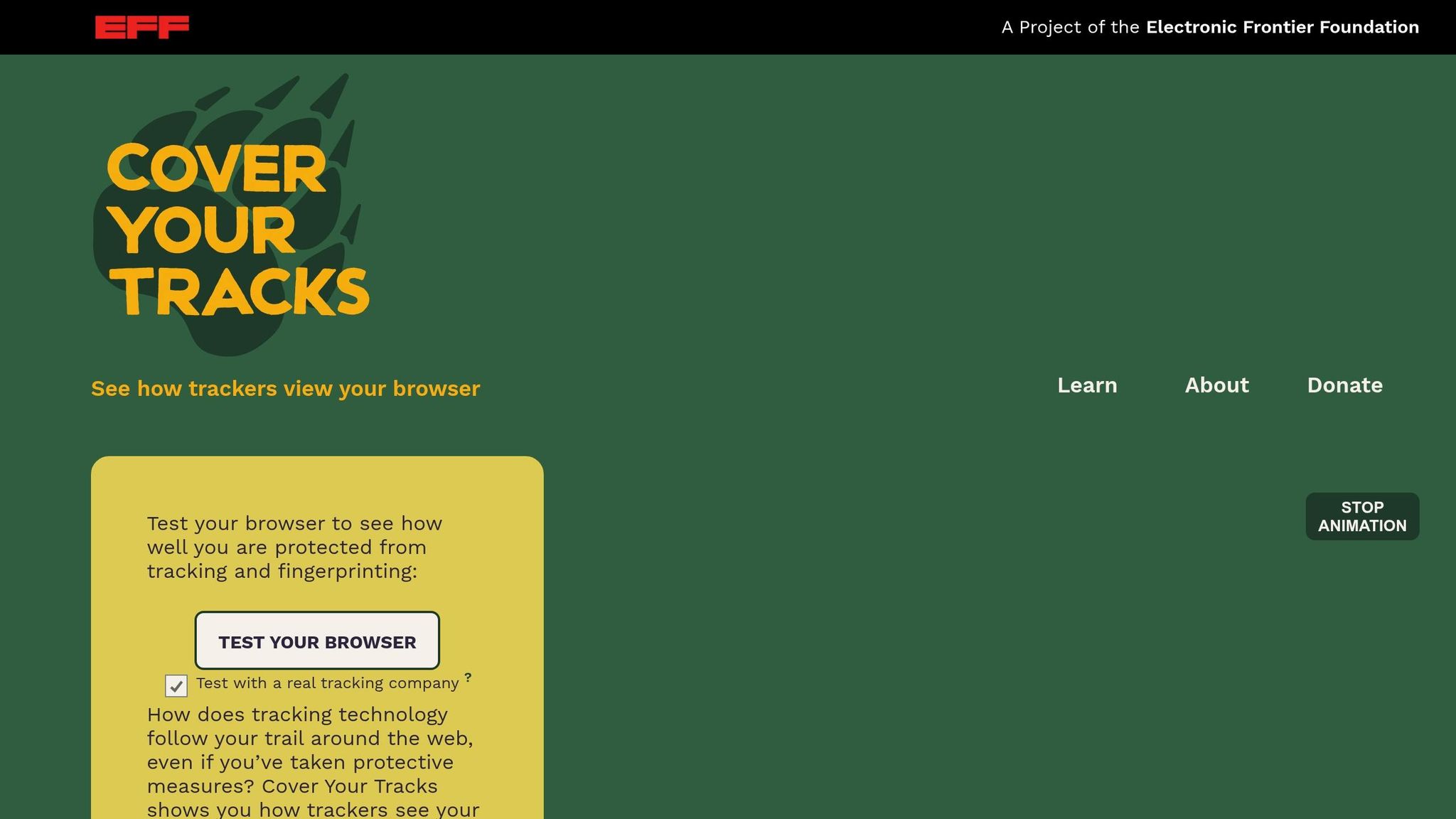
Cover Your Tracks is a free tool from the Electronic Frontier Foundation. It measures entropy to show how specific characteristics, like your screen resolution or font list, make your browser stand out. For example, a rare combination of these attributes can make your fingerprint nearly one of a kind. The tool also checks if your browser blocks tracking ads and invisible trackers.
Am I Unique?
Am I Unique? relies on statistical analysis to compare your fingerprint against millions of others in its database. It provides a percentage score indicating how many users share your setup. A lower score means fewer people share your configuration, making you easier to track.
Pay close attention to entropy scores for attributes like screen resolution, installed fonts, and rendering quirks from Canvas and WebGL. These can often identify you more precisely than your IP address, with Canvas and WebGL rendering narrowing you down to less than 0.01% of users.
BrowserLeaks and Other Tools
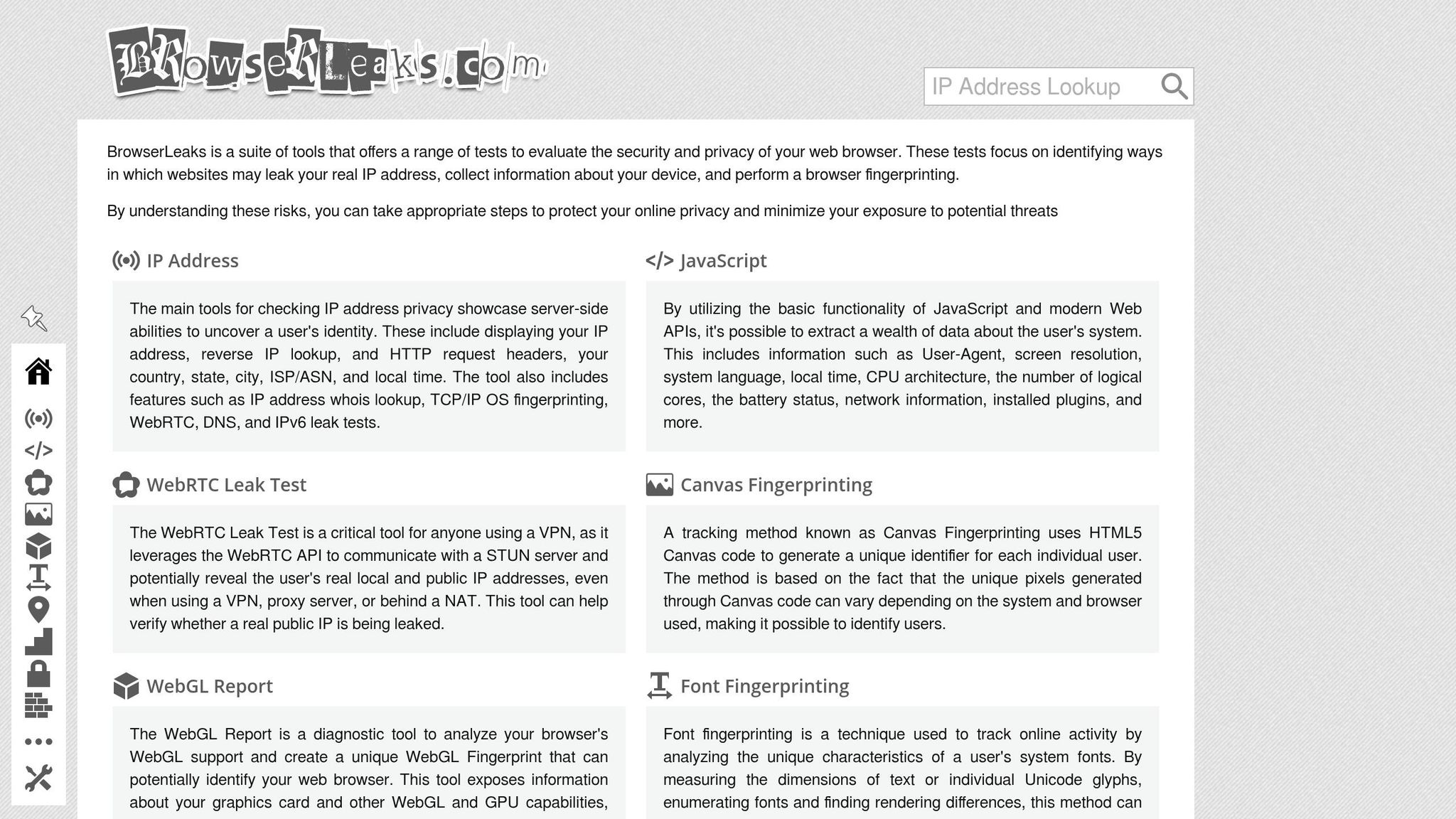
BrowserLeaks focuses on specific browser APIs to identify potential data leaks. It tests areas like Canvas, WebGL, WebRTC, and Audio. For instance, the Canvas and WebGL tests expose unique GPU rendering traits, while the Audio test uses the AudioContext API to analyze how your device processes sound – another surprisingly accurate identifier. The WebRTC test is particularly important if you use a VPN, as it checks whether your real IP address is exposed through communication protocols.
For a more detailed risk assessment, ToDetect and BrowserScan are worth exploring. ToDetect evaluates over 50 parameters, including whether your time zone and language align with your IP location, which can flag potential fraud risks. BrowserScan, on the other hand, dives into hardware-level signals like WebGPU and media device IDs and can even detect automation frameworks such as Selenium or Puppeteer.
Summary Table
Here’s a quick comparison of these tools and their focus areas:
| Tool | Primary Focus | Key Metric |
|---|---|---|
| Cover Your Tracks | Tracking protection | Bits of entropy per attribute |
| Am I Unique? | Statistical uniqueness | % of users sharing your fingerprint |
| BrowserLeaks | API-level data leaks | Canvas, WebGL, WebRTC, Audio leaks |
| ToDetect | Fraud/risk assessment | IP-to-environment consistency |
| BrowserScan | Authenticity testing | Hardware signals & automation detection |
These tools are free to use and don’t require registration, making them an accessible way to understand and reduce your online fingerprint.
How to Read Your Fingerprint Test Results
What Fingerprint Uniqueness Means
After running a fingerprint test, the first thing to check is your uniqueness score. This might look something like: "Your browser is unique among 250,000 tested" or "shared by 0.02% of users." A higher uniqueness score means trackers will have an easier time following you online.
You might also see a measurement called bits of entropy. Think of it like a combination lock: the more bits, the more complex and identifiable your fingerprint becomes. Here’s a general breakdown:
- 0–5 bits: Low risk, less distinctive.
- 5–15 bits: Moderately unique.
- 15+ bits: Highly unique and easier to track.
For example, the EFF’s Panopticlick study revealed that many browsers carried over 18 bits of entropy, making them identifiable among hundreds of thousands of users.
A fingerprint that is both unique and stable over time is the worst-case scenario for privacy. On the other hand, a fingerprint that is common and changes frequently is much harder to track. When analyzing your results, pay attention to both the uniqueness of your fingerprint and how consistent its attributes are across multiple tests.
Finally, take a closer look at which browser attributes contribute most to your uniqueness. Identifying these will point you toward areas where adjustments can improve your privacy.
High-Risk Browser Attributes
Not all fingerprint data is equally revealing. Some attributes stand out more than others and are worth focusing on first.
Here’s a quick summary of the most high-risk attributes and why they matter, based on research from EFF and AmIUnique:
| Attribute | Why It’s High-Risk |
|---|---|
| Canvas & WebGL fingerprint | How your device renders graphics creates a unique signature that’s easy to track. |
| Installed fonts | A long or uncommon font list can add over 8 bits of entropy. |
| User-Agent string | Includes browser type, version, and OS, contributing around 10.5 bits of entropy. |
| Screen resolution | Non-standard or ultra-wide displays stand out significantly. |
| Time zone & language | Mismatches, like US English paired with a non-US time zone, are highly distinctive. |
| WebRTC data | May reveal your real local IP address, even when using a VPN. |
When reviewing your test results, look for attributes flagged as "unique", "very rare," or marked in red or orange. Tools like AmIUnique and BrowserLeaks highlight these clearly, so you can prioritize addressing the attributes that most impact your uniqueness score.
sbb-itb-5a89343
How to Reduce Your Browser Fingerprint
Browser Settings You Can Change
Tweaking your browser settings can help your fingerprint blend in with others. If you’re using Firefox, enabling privacy.resistFingerprinting is one of the simplest and most effective changes. To do this, open a new tab, type about:config, search for privacy.resistFingerprinting, and set it to true. This adjustment standardizes elements like your reported window size, time zone behavior, and certain API responses, making your browser less unique to tracking scripts. For Brave, head to Shields and set fingerprinting protection to "Strict." If you’re concerned about potential site issues, start with "Standard" instead. Safari manages this with its default Intelligent Tracking Prevention, which you can find under Privacy settings.
In addition to enabling anti-fingerprinting features, block third-party cookies and limit site permissions. In Chrome or Edge, navigate to Settings → Privacy and security → Site settings, then set location, camera, microphone, and sensors to "Ask before accessing." For Firefox, switch Enhanced Tracking Protection to "Strict" and enable "Delete cookies and site data when Firefox is closed." While these steps won’t completely eliminate fingerprinting, they significantly reduce the data trackers can use to identify you.
A word of caution: creating a highly customized setup might actually make your browser more unique. The EFF advises that staying within common configurations – like using standard Brave Shields or Firefox with widely recommended privacy settings – is often a safer bet than building an overly customized setup.
To further isolate your browsing activities, consider using separate profiles.
Using Separate Profiles or Browsers
Changing browser settings helps, but it’s not enough if you’re mixing work, personal, and anonymous browsing in the same profile. If everything happens in one browser, cookies, login sessions, and behavioral patterns can overlap, making it easier for trackers to connect the dots.
A better strategy is to create clear "compartments" for different activities. For instance, you could use Chrome or Edge for work-related tasks, Firefox for personal banking and shopping, and Brave or Tor Browser for anonymous or sensitive browsing. Each browser will have its own fingerprint, cookie storage, and extensions, reducing the chances of accidental cross-contamination.
If you’d prefer to stick to one browser, most support multiple profiles. In Chrome, Edge, or Brave, click the avatar icon in the top-right corner and select "Add" to create a new profile. For Firefox, go to about:profiles to manage separate profiles. Just remember: never log into the same account across multiple profiles to maintain proper compartmentalization.
Protecting Your Phone Number with MobileSMS.io
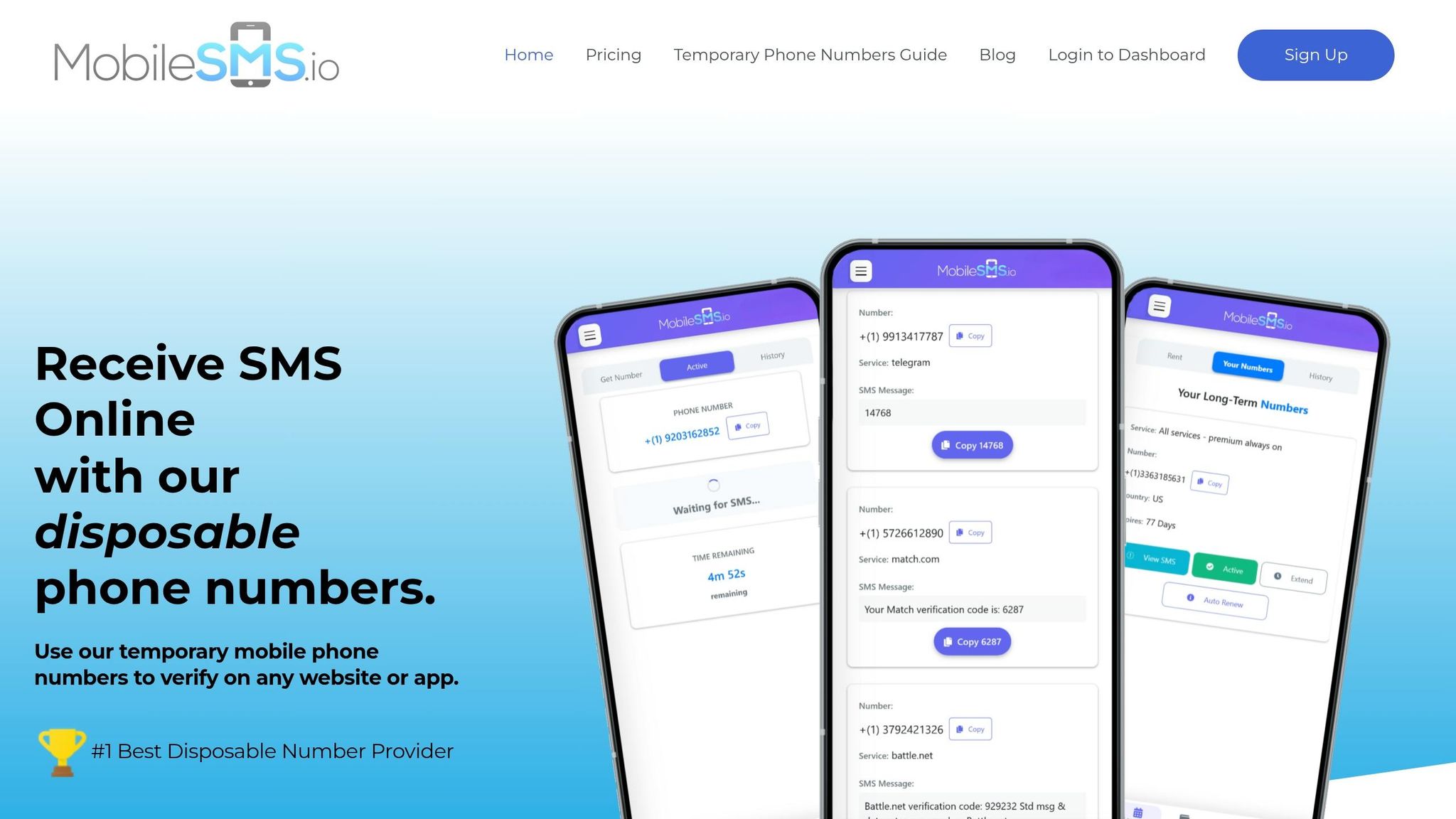
Reducing your browser fingerprint is a big step, but it’s not the only part of safeguarding your privacy. Many platforms require a phone number for account verification, and if you use your personal number, it can become a tracking signal that links your identity across multiple accounts.
This is where MobileSMS.io comes in. Instead of providing your personal number, you can use a disposable, real SIM-card-based number that isn’t tied to your identity. MobileSMS.io’s numbers are accepted by over 1,200 platforms – including Google, Facebook, Instagram, and WhatsApp – with a 99.7% success rate. Prices for one-time numbers start at $3.50, and you’re only charged if the SMS code is successfully delivered.
Using a service like MobileSMS.io helps reinforce your privacy by keeping your phone number separate from your real identity. This adds another layer of protection to the browser profiles and anti-fingerprinting settings you’ve already implemented. Together, these measures create a stronger barrier against tracking with minimal effort on your part.
Conclusion
Incorporate fingerprint testing into your regular privacy habits. Begin with a fresh browser session and test your setup using tools like EFF’s Cover Your Tracks, AmIUnique, and BrowserLeaks. Compare your results before and after tweaking your settings to understand the impact of each adjustment.
The goal isn’t total invisibility but blending into the crowd. Keep extensions to a minimum, use standardized settings, and create separate profiles for different activities to help achieve this.
Don’t forget about protecting another critical identifier – your phone number. Using a SIM-based disposable number from MobileSMS.io can keep your personal number private, preventing it from being quietly used to link your identities across platforms.
Privacy works best when layered. Fingerprint hygiene limits what trackers can gather during visits, compartmentalized browser profiles separate activities, and safeguarding your phone number addresses one of the most overlooked vulnerabilities. Make it a habit to test your fingerprint quarterly or after major changes. This combination of fingerprint management and secure phone verification is a solid foundation for maintaining your online privacy.
FAQs
Will incognito mode change my browser fingerprint?
Incognito mode can help minimize tracking and keep your browsing history private, but it doesn’t alter your browser fingerprint. This fingerprint is created using your device and browser settings, which stay consistent even when you switch to incognito mode.
Which fingerprint test tool should I trust most?
Multilogin stands out as the go-to tool for fingerprint testing. It allows users to manage multiple profiles, each equipped with distinct digital fingerprints. This minimizes detection risks and boosts verification success rates, making browsing safer and more efficient.
Why does my fingerprint look unique even with a VPN?
Your fingerprint stays distinctive, even when using a VPN, because websites track more than just your IP address. They examine details like your browser type, installed plugins, device specs, and even your behavior patterns. These elements are tough to completely hide or fake.