


Deleting cloud data is usually a timeline, not a button press. In many cases, live data may disappear first, while backups, logs, invoices, version history, and legal-hold records stay in place for days, weeks, or even months.
If I wanted to make sure cloud data was gone, I’d do four things right away:
- Check retention rules first so I know what deletes now and what waits
- Map every copy across regions, backups, synced tools, and third-party apps
- Delete live data before closing the account
- Ask for written proof after the retention window ends
Here’s the plain-English version: account closure does not mean erasure. A 30-day, 90-day, or service-based recovery window may still apply. And deleting from a console often removes only the live copy, not every stored record tied to the account.
A few points I’d keep in front of me:
- Soft delete means data may still be restorable
- Backups and snapshots often have their own timers
- Logs and billing records may stay for fraud, tax, or legal reasons
- Changing retention settings later may not affect data already queued under old rules
- Proof matters: save ticket IDs, timestamps, screenshots, and billing records
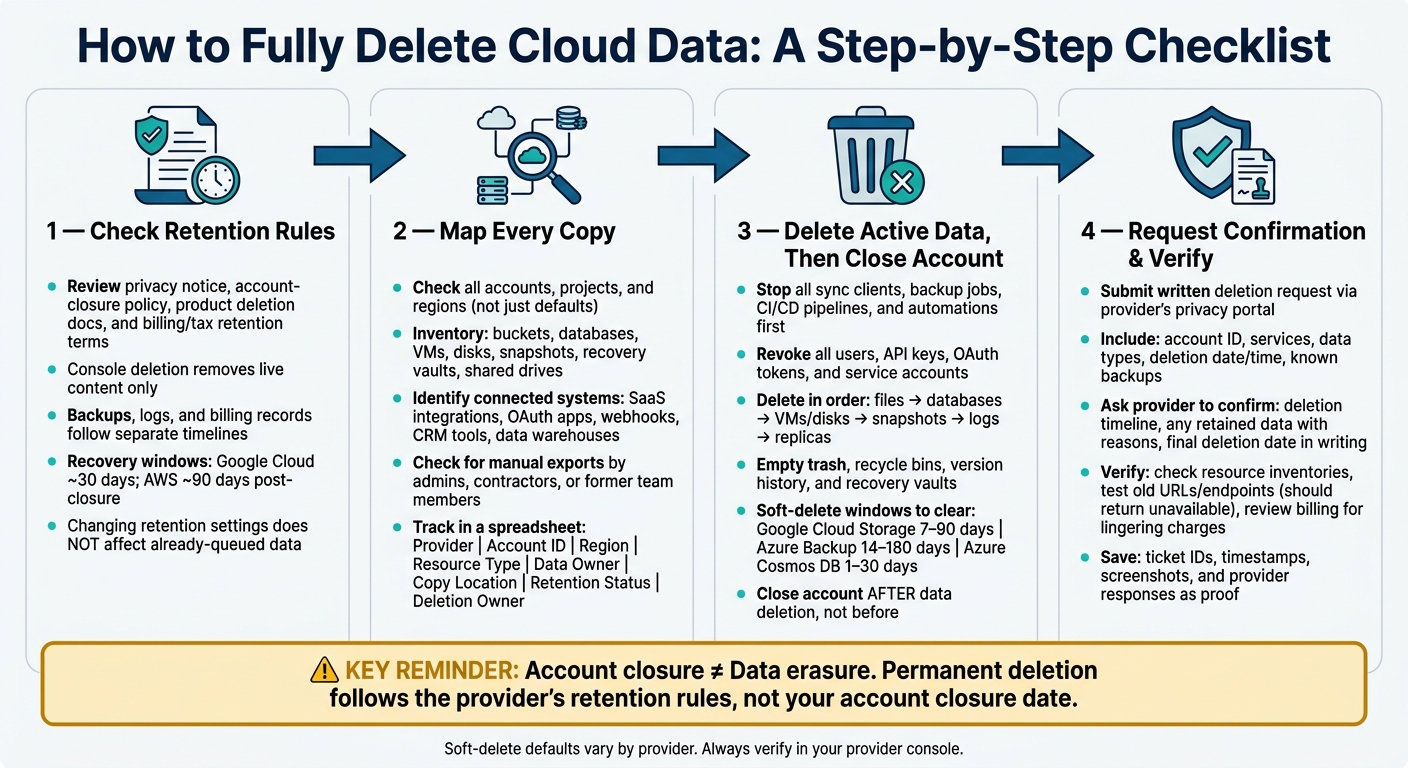
Cloud Data Deletion: Step-by-Step Checklist
Quick comparison
| Area | What I’d check | Why it matters |
|---|---|---|
| Live data | Files, databases, VMs, buckets | This is usually the first layer removed |
| Recoverable data | Trash, recycle bin, version history, vaults | Data may still be restorable |
| Backup copies | Snapshots, replicas, archive tiers | These often delete on a separate schedule |
| Provider-held records | Logs, invoices, access records | These may stay past account closure |
| Third-party copies | OAuth apps, sync tools, exports, SMS/ID services | A deleted cloud account won’t remove these |
Bottom line: I’d treat cloud deletion like a checklist, not a single action. Delete what I control, stop anything that can restore it, then wait out the retention period and get written confirmation that no recoverable copy remains.
sbb-itb-5a89343
Check Retention Rules Before You Delete Anything
Before you delete anything, check four documents first:
- the privacy notice
- the account-closure policy
- product-specific deletion docs
- billing or tax retention terms
That step matters because deletion timing can change based on the service, the type of data, the region, and what’s happened in the account. In plain English: the rules decide whether data disappears now or sits in a holding period first.
Also, console deletion usually removes live content only. Backups, logs, and billing records often follow their own timelines.
Policies That Affect Whether Deletion Is Immediate or Delayed
A few policy types often slow down permanent deletion.
- Recovery windows and grace periods: Data stays restorable until the recovery window ends.
- Soft-delete and versioning: Deleted objects and older file versions can still be recovered before they’re removed for good.
- Backups and snapshots: Provider-managed copies expire on their own schedule, separate from manual deletion.
- Compliance records: Audit logs, access records, billing invoices, and security archives are often kept for fraud prevention or legal rules. You usually can’t remove these through the console.
- Data-residency rules: If data is stored across regions, that can affect where deletion requests are handled and how long they take.
One small but easy-to-miss detail: changing a retention setting does not shorten retention for data that was already deleted under the old policy.
Provider Deletion Timeline Comparison
Use the timelines below as a rough guide for when deletion becomes permanent.
| Provider or service | User action | Deletion window | Exceptions | Confirmation method |
|---|---|---|---|---|
| Google Cloud project | Shut down or delete the project | Up to 30-day recovery period; active-system deletion ~2 months; backups expire within 6 months of request | Service-specific behavior, retained logs, legal or security records | Google Cloud Console project status |
| Google Cloud Storage bucket or object | Delete the object or bucket | 7-day default soft-delete (configurable 7–90 days); permanent deletion after soft-delete period | Object versioning, retention policies, legal holds, project recovery rules | Bucket Protection settings, audit logs |
| AWS account | Close the AWS account | 90-day post-closure access period; remaining resources deleted after that | CloudTrail trails, service-specific records, legal obligations | AWS closure email, Billing console records |
Write down the provider, resource ID, region, retention window, and any exceptions. You’ll use that record later to confirm deletion and track every copy that might still exist.
Identify Every Place Your Cloud Data Exists
Once your retention rules are clear, the next job is mapping every place your data lives. Retention rules tell you when deletion should happen. Mapping shows you what still exists right now. And in one cloud account, data can end up all over the place: object-storage buckets, virtual machines, attached disks, snapshots, archive tiers, audit logs, billing records, support tickets, and synced devices at the same time.
Map Active Resources, Copies, and Connected Systems
Start with live resources. Then follow the trail into backups, syncs, and connected apps.
Check your provider console for each resource type: buckets, databases, VMs, disks, snapshots, recovery vaults, and shared drives. Go through every account, project, and region, not just the default one. That part trips people up all the time.
After that, look for copies that are easy to miss. Review backup schedules, replication rules, and recovery points. Backups and recovery points often follow their own retention rules, separate from the live system. Then map connected systems too, including SaaS integrations, OAuth apps, webhooks, automation platforms, CRM tools, advertising platforms, and data warehouses. If data moved through an API or pipeline, there’s a good chance a copy landed somewhere else.
Manual copies matter too. Admins, contractors, and former team members may have downloaded exports. Some may still have access through service accounts or API keys. That’s not a corner case. It happens more than people expect.
Track all of this in a spreadsheet with columns for:
- Provider
- Account ID
- Region
- Resource type
- Data owner
- Copy location
- Retention status
- Deletion owner
That way, you can confirm deletion later instead of guessing. Assign one person to each resource, and require a second-person review for anything sensitive or regulated.
Export Only What You Need to Keep
Before deleting anything, decide what actually needs to stay. That might include invoices, tax records, contracts, consent logs, or anything under a litigation hold. Export only those records. Don’t export entire databases if you only need a small slice.
Store the export in an encrypted, access-controlled location with a set retention date. Also document what was exported, why it was kept, and when it should be destroyed. If you skip that step, the export can turn into yet another forgotten copy.
Deleting a synced folder does not remove the provider copy, version history, or backups. Always verify in the provider console. And check that the export itself isn’t being synced into another cloud service or pulled into a backup job behind the scenes.
Check Third-Party Accounts Tied to Signup or Verification
Cloud accounts rarely stand alone. When you signed up or verified your identity, you may have linked outside services like identity providers, email services, single sign-on tools, or phone verification services. Each one keeps its own data and has its own deletion steps.
If you used MobileSMS.io for SMS verification, close that account separately; its deletion does not remove data the cloud provider still holds.
Revoke access first. Then send a separate deletion request for each connected service. After external access is revoked, delete the live cloud resources and close the account.
Delete Active Data, Then Close the Account
Use your inventory to delete active data in order. Delete the data first. If you close the account first, some data may stay billable, recoverable, or still running.
Remove Access, Stop Sync, and Delete Resources
Open the provider console and make sure you’re in the right account, organization, project, subscription, tenant, and region before you delete anything. That sounds obvious, but it’s one of the easiest places to slip.
Then stop every process that could bring the data back. Pause desktop and mobile sync clients. Turn off backup jobs. Stop CI/CD pipelines, infrastructure-as-code deployments, scheduled functions, webhooks, and third-party integrations. If a sync client is still connected while you delete files, it can upload those files again before you’re done.
Next, cut off access. Remove users, groups, guest accounts, public links, shared drives, delegated administrators, and external collaborators. Revoke service accounts, API keys, access tokens, and OAuth authorizations too.
After that, work through your resource inventory and delete each item:
- files and folders
- databases and object-storage buckets
- virtual machines, attached disks, snapshots, and machine images
- container registries and serverless functions
- log destinations, queues, search indexes, and replicas
- test environments, monitoring destinations, and CDN caches
Delete parent resources before dependents. A good example is AWS CloudTrail. Deleting a trail does not automatically remove its linked Amazon S3 bucket, log files, or CloudWatch Logs group. You have to delete those separately.
Clear Soft-Delete Areas and Disable Backups or Retention Locks
After active resources are deleted, you’re not done yet. Many providers don’t erase deleted items right away. Instead, they move them into a recoverable state.
So the next step is to clear those copies too. Empty all trash, recycle-bin, version-history, and recovery-vault locations.
Provider retention windows can vary a lot, and they’re easy to guess wrong:
| Provider / Service | Soft-Delete Default | Maximum Configurable Retention |
|---|---|---|
| Google Cloud Storage | 7 days | 90 days |
| Azure Backup | 14 days | 180 days |
| Azure Cosmos DB | 1 day | 30 days |
Once recoverable storage is cleared, check backup vaults, replication rules, lifecycle policies, object versioning, archival tiers, and scheduled snapshots. Disable or delete each one when the provider allows it. If a retention lock or legal hold stops deletion, record the owner, the purpose, and the expiration date.
Pre-Deletion Checklist Before You Confirm
Before you hit the final confirmation, go through this check:
- Correct scope: The selected account, organization, project, subscription, tenant, and region are exactly what you mean to delete.
- Reversibility: You know whether the action can be undone for a stated period or is permanent right away.
- Ownership: No other administrator owns related resources, backups, or billing profiles that still need attention.
- Compliance: No legal hold, tax record, or investigation hold blocks deletion.
- No sync, backup, replication, or automation is still running.
- Billing reviewed: You understand final charges and cancellation terms before you continue.
Save the confirmation ID, the date and time, the account identifier, and any support ticket number. Keep that record for the follow-up step.
Request Confirmation and Verify Deletion Was Completed
After deletion and any soft-delete period, the last step is simple: find out what the provider still keeps.
Submit a Formal Deletion Request for Provider-Managed Records
After you finish deleting data in the console, send a written request through the provider’s privacy portal or support channel. Use the details from your deletion log when you file it.
Include:
- Your account ID, affected services, and data types
- The exact date and time of deletion or account closure, in the provider’s time zone
- Any known backups, replicas, exports, or integrations
Then ask the provider to:
- Confirm the deletion timeline and when each retention period ends
- List any data that can’t be deleted yet, explain why, and give the final deletion date
- Confirm in writing when active data and backup copies are dealt with
If the reply feels vague, ask directly about backups, logs, replicas, and retained records.
Use the response to set your follow-up date and build your verification checklist. Add the provider’s reply to your deletion log before the retention deadline passes.
Keep a Deletion Log and Follow Up After the Retention Window
Track each service and resource in a separate log, with one row per item. Store that log outside the account you’re deleting so you can still access it later. Note the time zone, deletion method, screenshots or export receipts, any API or console output, and the date for your next follow-up.
| Service | Resource | Deletion Action | Date | Recovery Deadline | Provider Ticket | Retention Exception | Verification Result |
|---|
Once the provider gives you a date, put a reminder on your calendar for that day. Then verify in this order:
- Check that recovery menus and resource inventories are empty
- Test old file links, download URLs, database endpoints, and API integrations in a private browser session without admin access. They should return an unavailable or unauthorized response, with no metadata
- Review your next billing cycle for charges tied to deleted resources
- Get written confirmation that the retention window has ended and no recoverable copy remains
Keep screenshots, ticket IDs, and billing records as proof.
If the provider misses the deadline, escalate through the formal privacy appeal process and attach your deletion log, ticket IDs, and verification results.
Conclusion: What Full Cloud Data Deletion Requires
With your deletion log finished, the last step is to separate account closure from actual erasure.
Closing a cloud account is an admin action. It is not proof that your data is gone.
In most cases, account closure starts the deletion process. But the provider’s retention rules still decide when the data is finally erased.
Full deletion happens in order. Start with live resources. Then clear soft-delete areas, backups, and any holds you can control before you close the account. Think of it like moving out of an apartment: handing back the keys doesn’t mean every last item is gone if boxes are still in storage.
Use this summary to keep the last milestones straight:
| Stage | What it means | What you still need to do |
|---|---|---|
| Active deletion | Removed from live service | Delete associated copies and integrations |
| Retention expiry | Backup lifecycle or legal hold ends | Get the final deletion date in writing and confirm with the provider |
Once the retention window ends, shift from deletion to proof. Check that consoles, APIs, and integrations no longer show the data. Your deletion log – with ticket IDs, dates, screenshots, and provider responses – is the record you’ll want if something goes wrong later.
Account closure is administrative; permanent erasure is the provider’s final technical and contractual step.
FAQs
Does closing my account delete everything?
Closing your MobileSMS.io account triggers permanent deletion of most personal data after you confirm the request. That includes your account details, verification history, and any remaining credits.
A small set of records may still be kept where the law or basic business operations require it. This can include billing history for tax and compliance reasons, along with minimized or anonymized technical logs kept for a limited period.
How can I prove my cloud data was erased?
Proving cloud data erasure is hard because you usually can’t get into a provider’s backend systems yourself. The best move is to submit a formal erasure request and ask for written confirmation that spells out what was deleted, what was anonymized, and what was kept, along with the reason why.
Before you close your account, download records like invoices and account history. Once the account is deleted, you may lose access to them.
What data can a provider keep after deletion?
After you delete your account, MobileSMS.io permanently removes most personal data, account details, any remaining credits, and your usage or verification history.
That said, the company may still keep a small amount of information when the law requires it. This can include basic billing history for tax or legal compliance. It may also hold minimized, anonymized operational logs for a limited time to help with server stability and troubleshooting, then delete those as well.